How to transfer NetEase and QQ Music playlists to Apple Music quickly and accurately: a hands-on test
If you want to move your carefully collected playlists from QQ Music, NetEase Music, Kugou Music or Kuwo Music to Apple Music, there are two approaches worth considering: extract a text list and import it through a website, or use ClipTunes directly on your iPhone.
You might be like me: whenever you hear a song you love, you tap the heart. Over the years, that collection can easily grow to a thousand tracks. When switching music services, those playlists are often the hardest thing to leave behind. Searching for and adding hundreds or thousands of songs individually takes far too long.

Method 1: Extract a text playlist, then import it online
A common tutorial recommends finding the numeric ID in a playlist link, using an extraction tool to create a text list, and pasting that list into TuneMyMusic. You then choose Apple Music as the destination.
The following screenshots show an older version of this workflow. Website availability, navigation and button names may have changed. The original screenshots are in Chinese; the instructions and captions below explain each step.
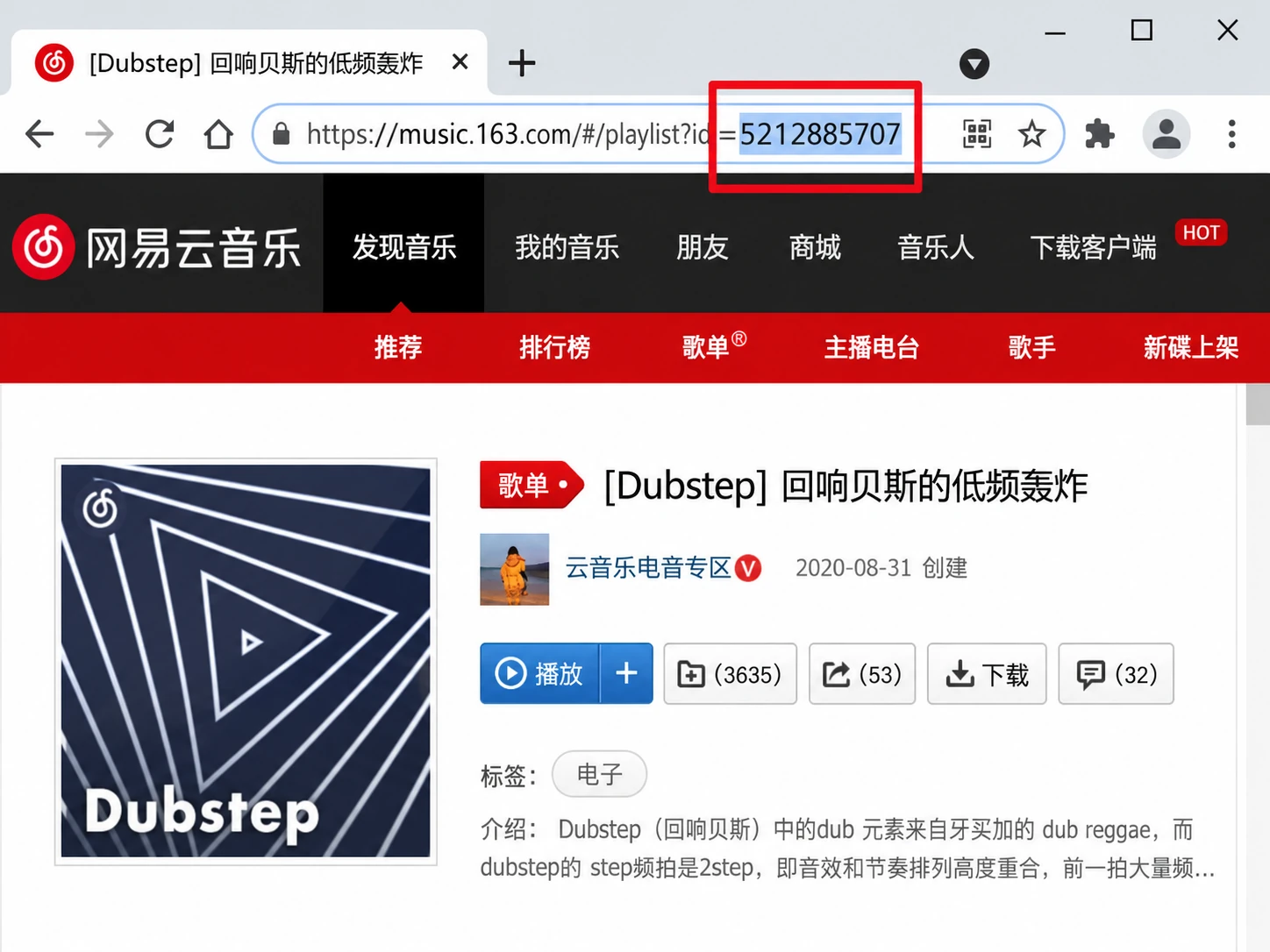
1. Find the ID in the playlist link
For NetEase Music, open the playlist in a browser. The digits after id= identify the playlist. The highlighted number in the screenshot is used in the next step.
2. Extract and copy the text playlist
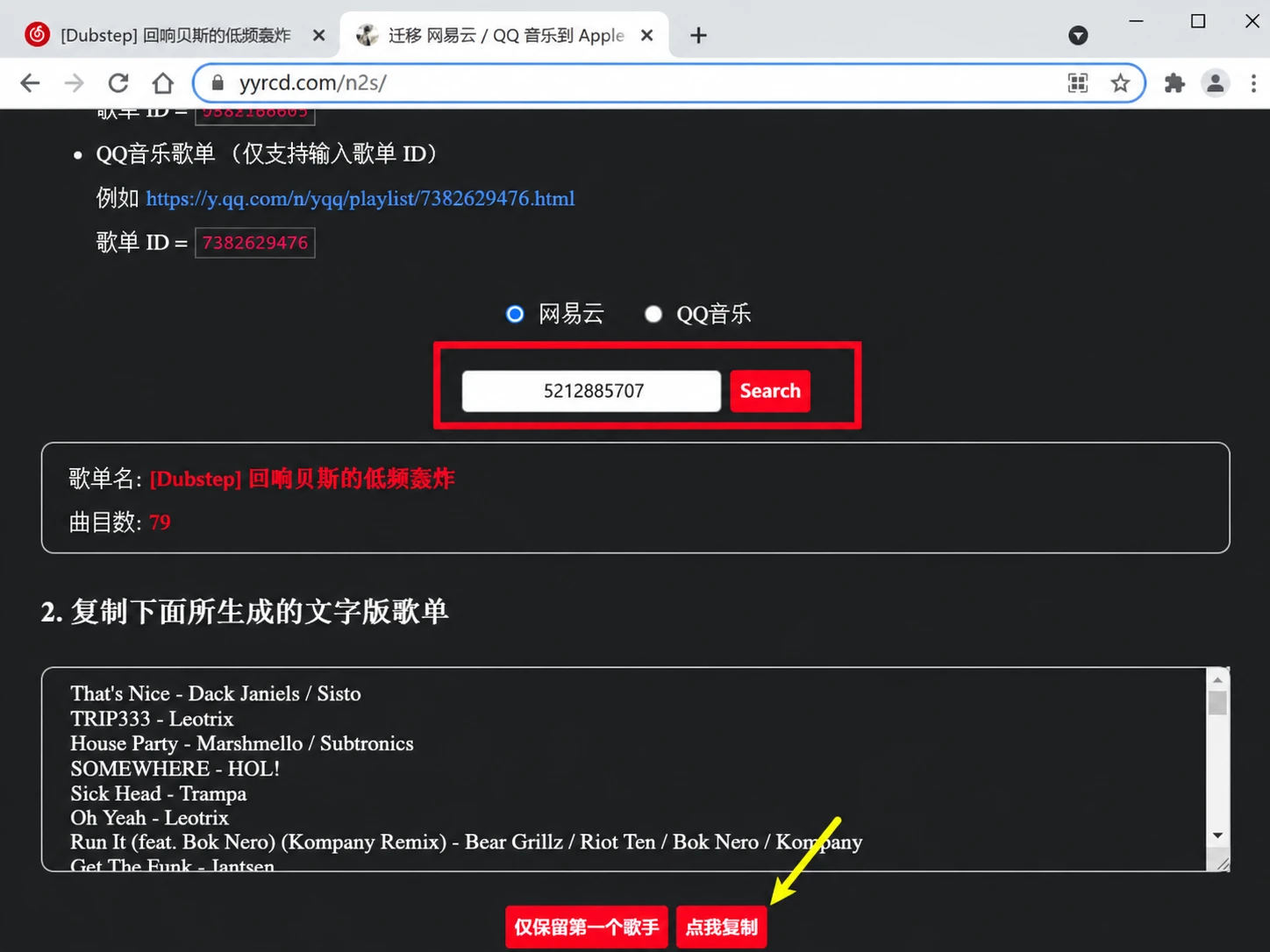
Enter the ID into an extraction tool that supports the source service. Generate a list of song titles and artists, then copy it. The screenshot shows the tool as it appeared at the time; check that it still works before relying on it.
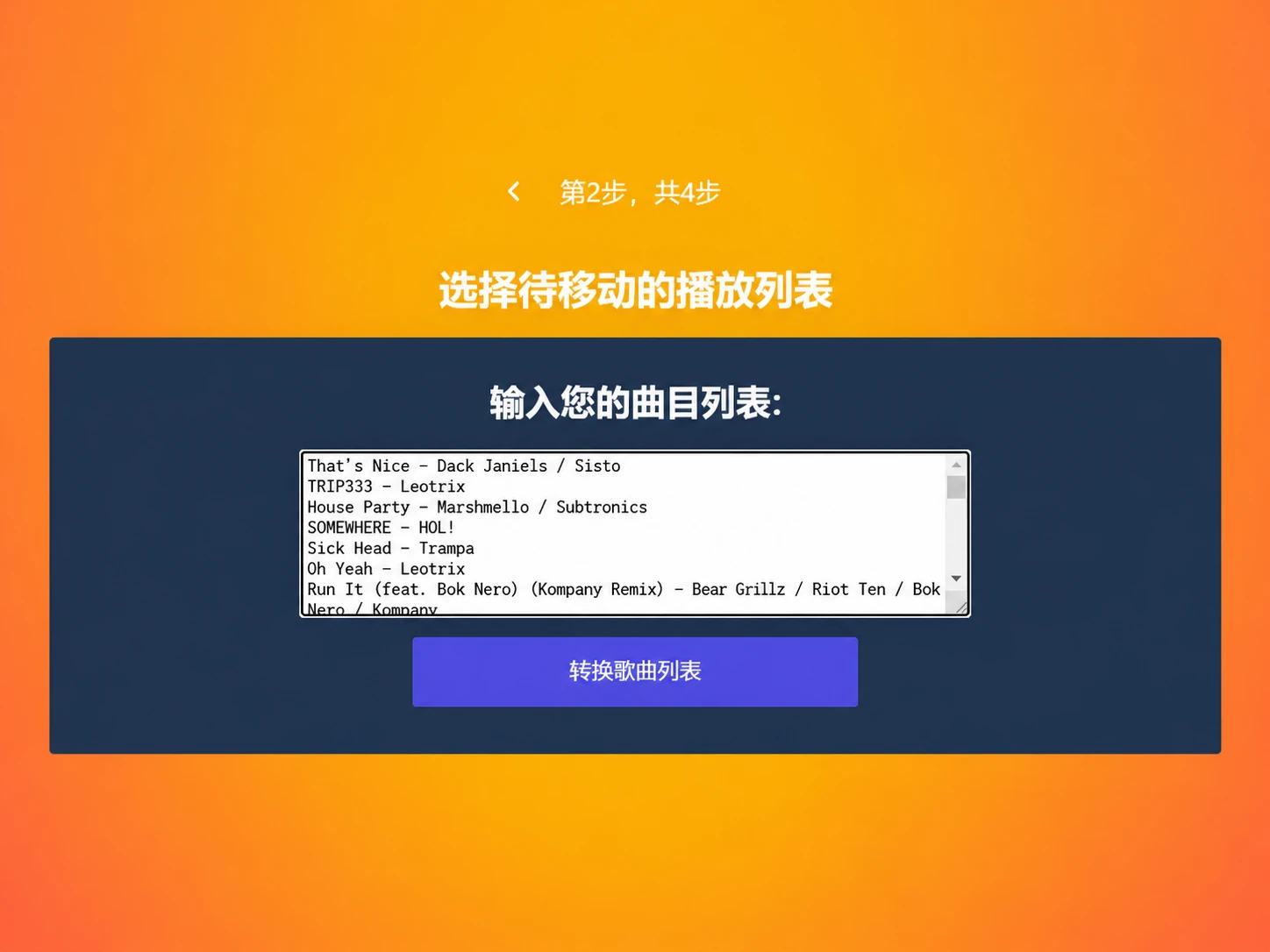
3. Choose “From text” in TuneMyMusic

Paste the song list you just copied and continue the conversion.
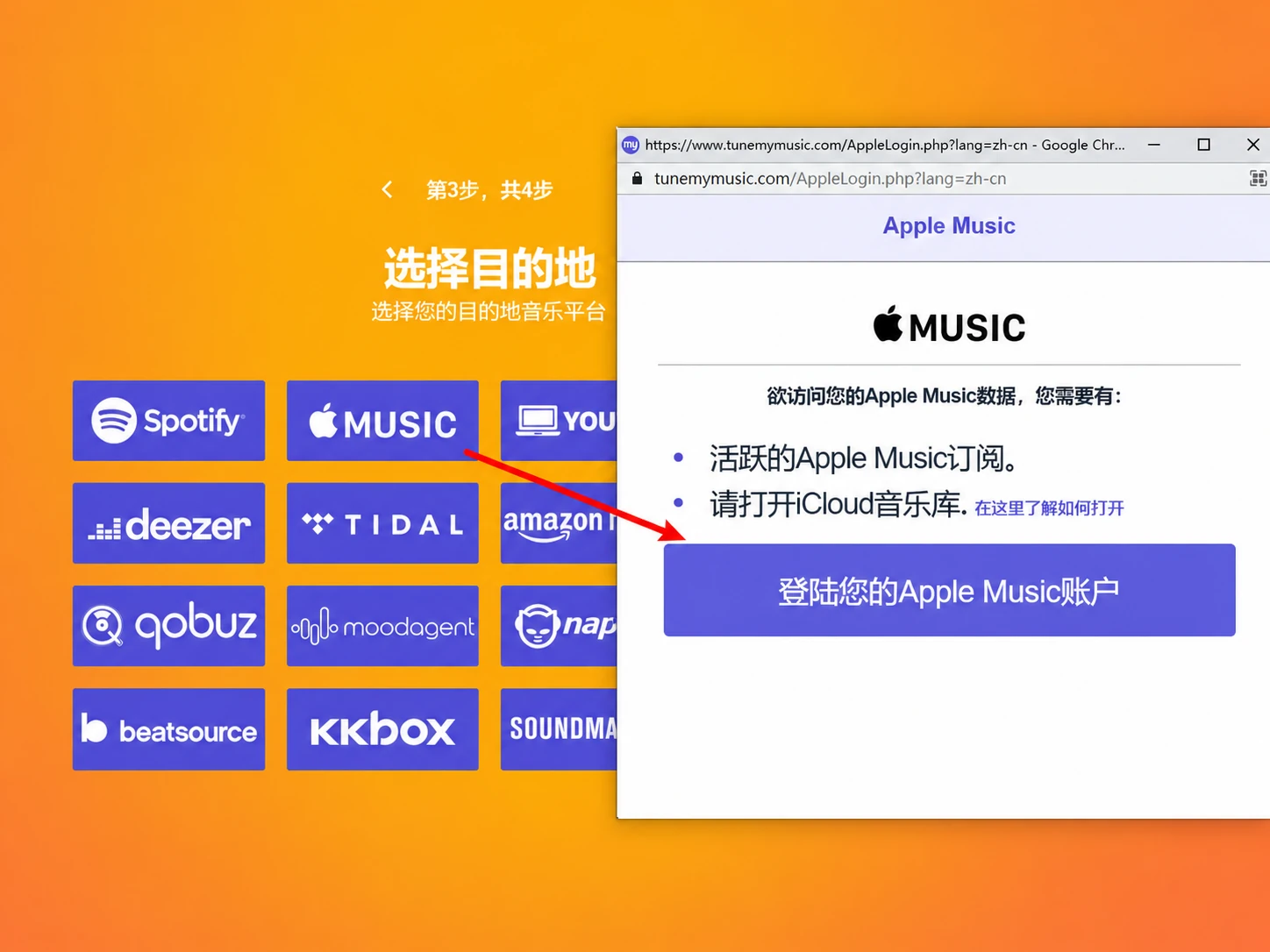
4. Connect Apple Music and finish importing
Select Apple Music as the destination, sign in and grant access as prompted, then complete the transfer. You need an active Apple Music subscription and Sync Library enabled.
The advantage is that you can try this route within the free allowance. The downside is the switching between an extraction tool, a transfer website and the Apple Music authorization screen, while copying and pasting long song lists. That is especially awkward on a phone.
Check the current official free allowance. As of October 20, 2026, the TuneMyMusic plans page advertises free transfers of up to 500 songs. Follow the service’s current instructions for how that allowance is counted and when payment is required.
Method 2: Transfer directly on your phone with ClipTunes
If convenience matters, particularly when you have many playlists, try ClipTunes. This iOS app transfers playlists to Apple Music from services including NetEase Music, QQ Music, Kugou Music, Kuwo Music, Qishui Music, Bodian Music and Spotify. Check the current app version for available source options.
Pricing first: matching songs is free; importing into Apple Music requires a paid unlock. ClipTunes uses a one-time purchase with no subscription or automatic renewal. Check the App Store or in-app purchase screen for the current price. You can review the matches before deciding whether to pay for importing.
Here is the full process using my NetEase playlist. For QQ Music and other supported services, the same sequence applies: copy the playlist link → paste → match → import.
1. Open ClipTunes and find the source service
The home screen shows the supported services. Press and hold a service’s icon to open its music app and find the playlist you want to transfer.
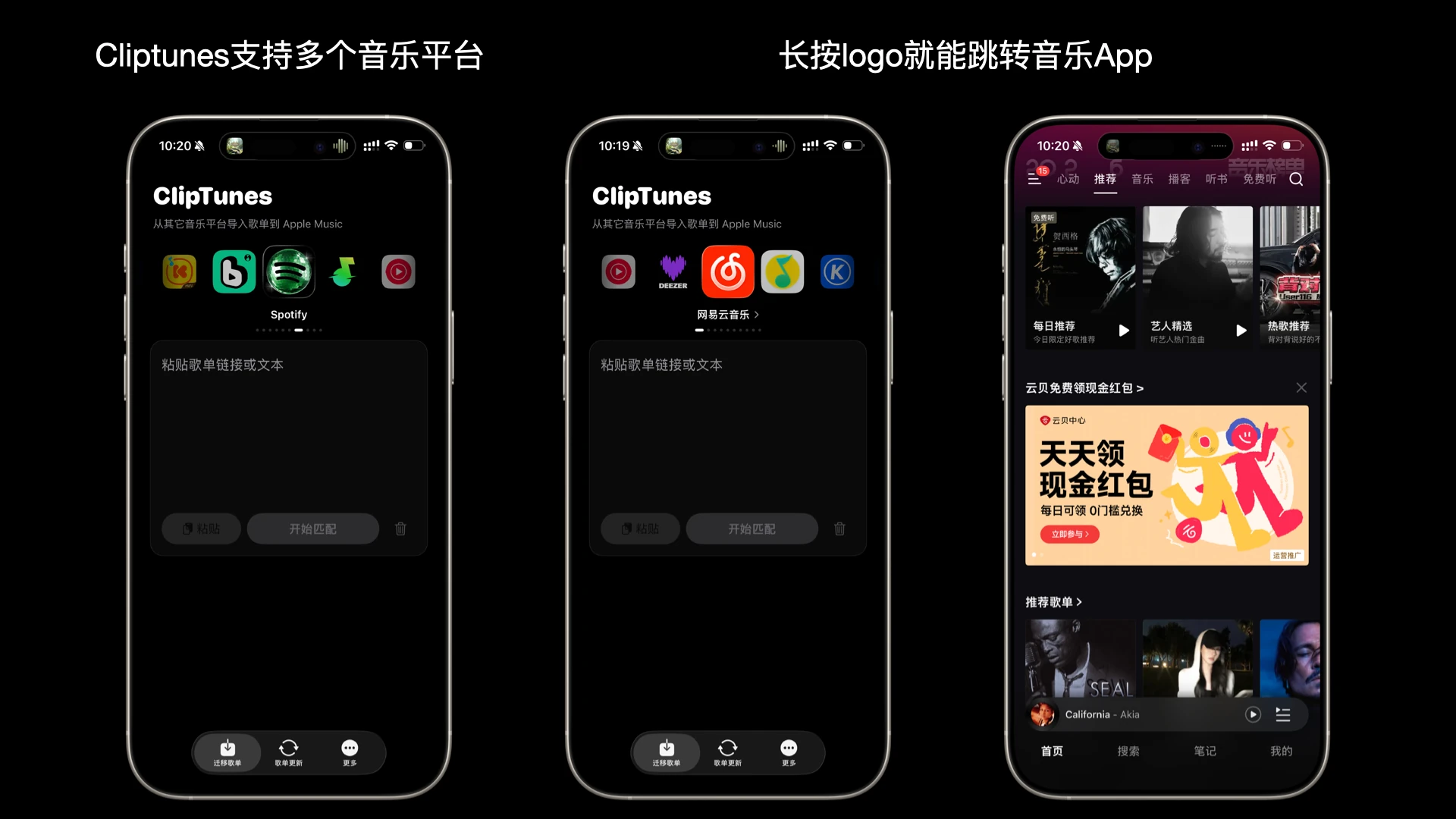
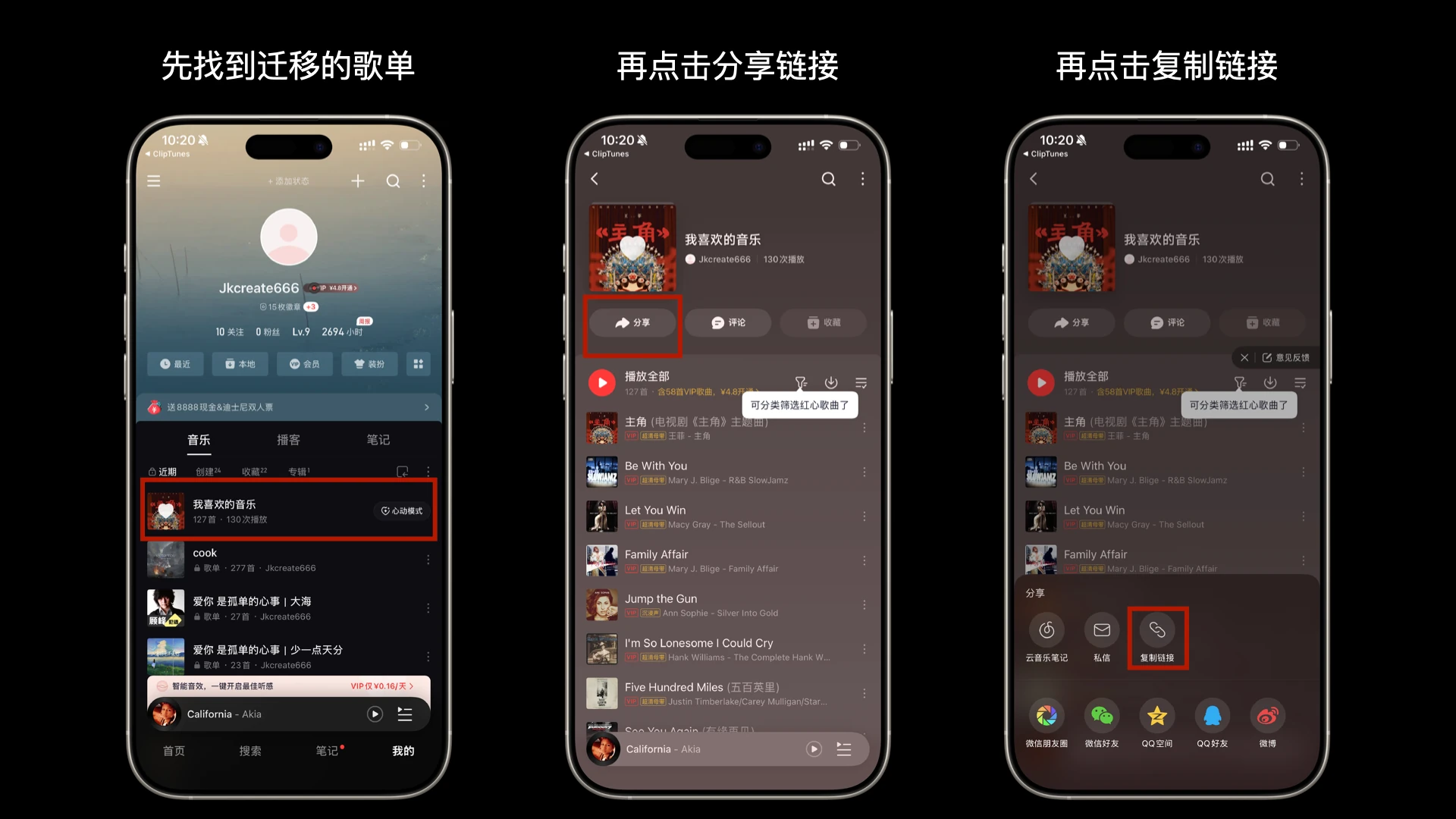
2. Open the playlist and copy its share link
Find the playlist in NetEase Music, tap Share, then Copy Link. This example uses my liked songs collection.
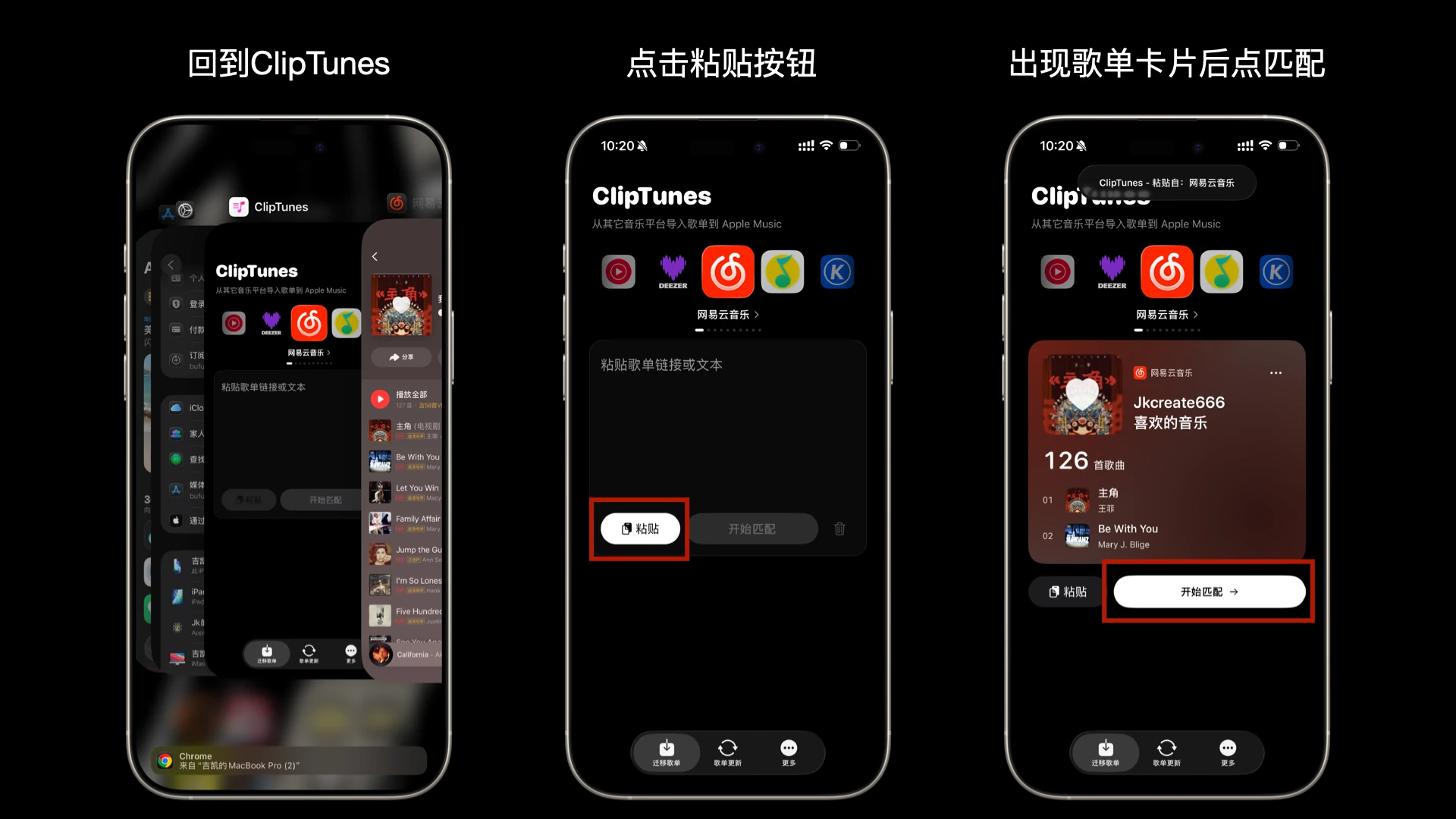
3. Return to ClipTunes, paste and start matching
Back in ClipTunes, tap Paste. Once the playlist card appears, tap Start Matching. The app looks up the songs in Apple Music in bulk, without requiring a text export first.
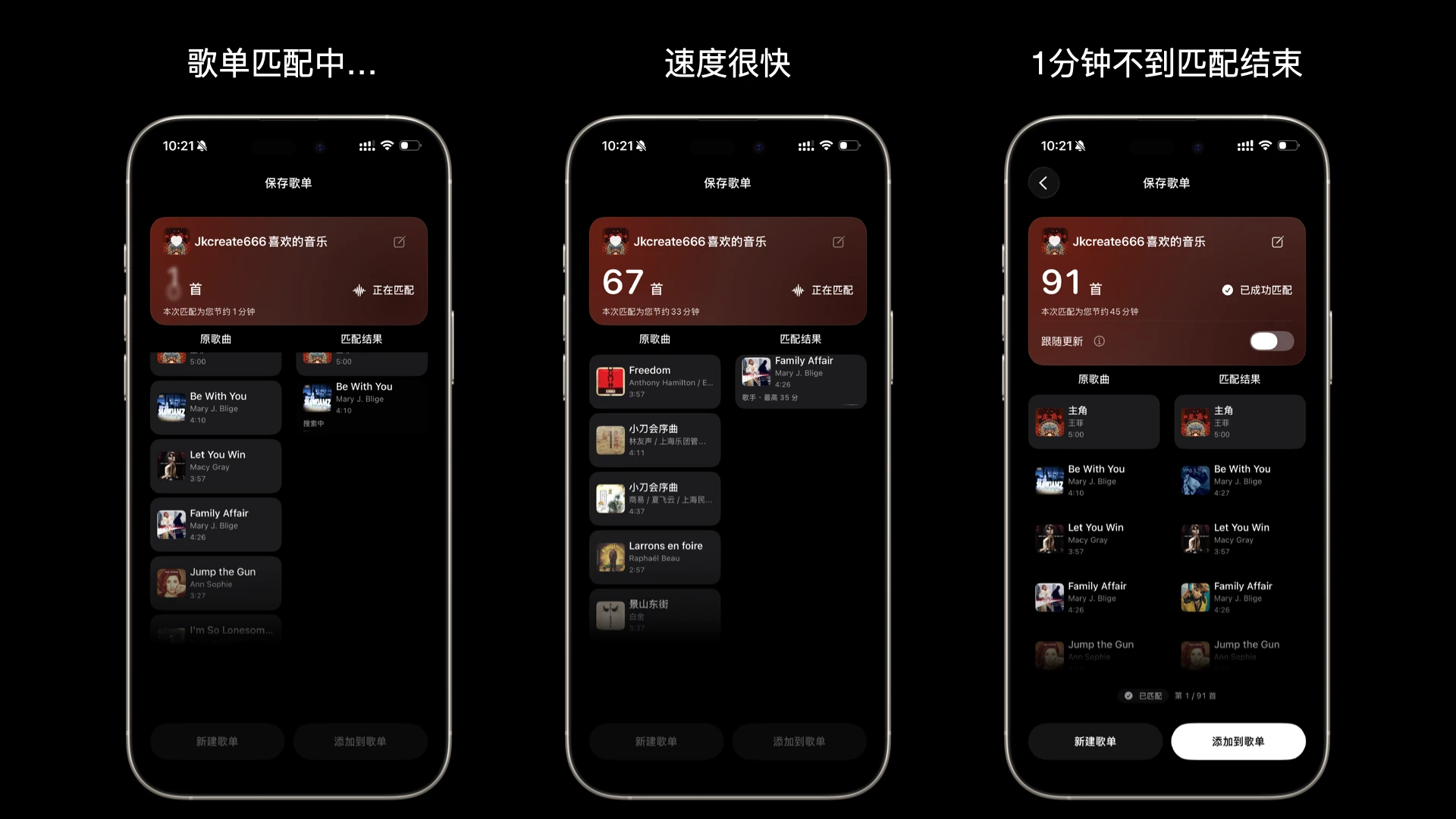
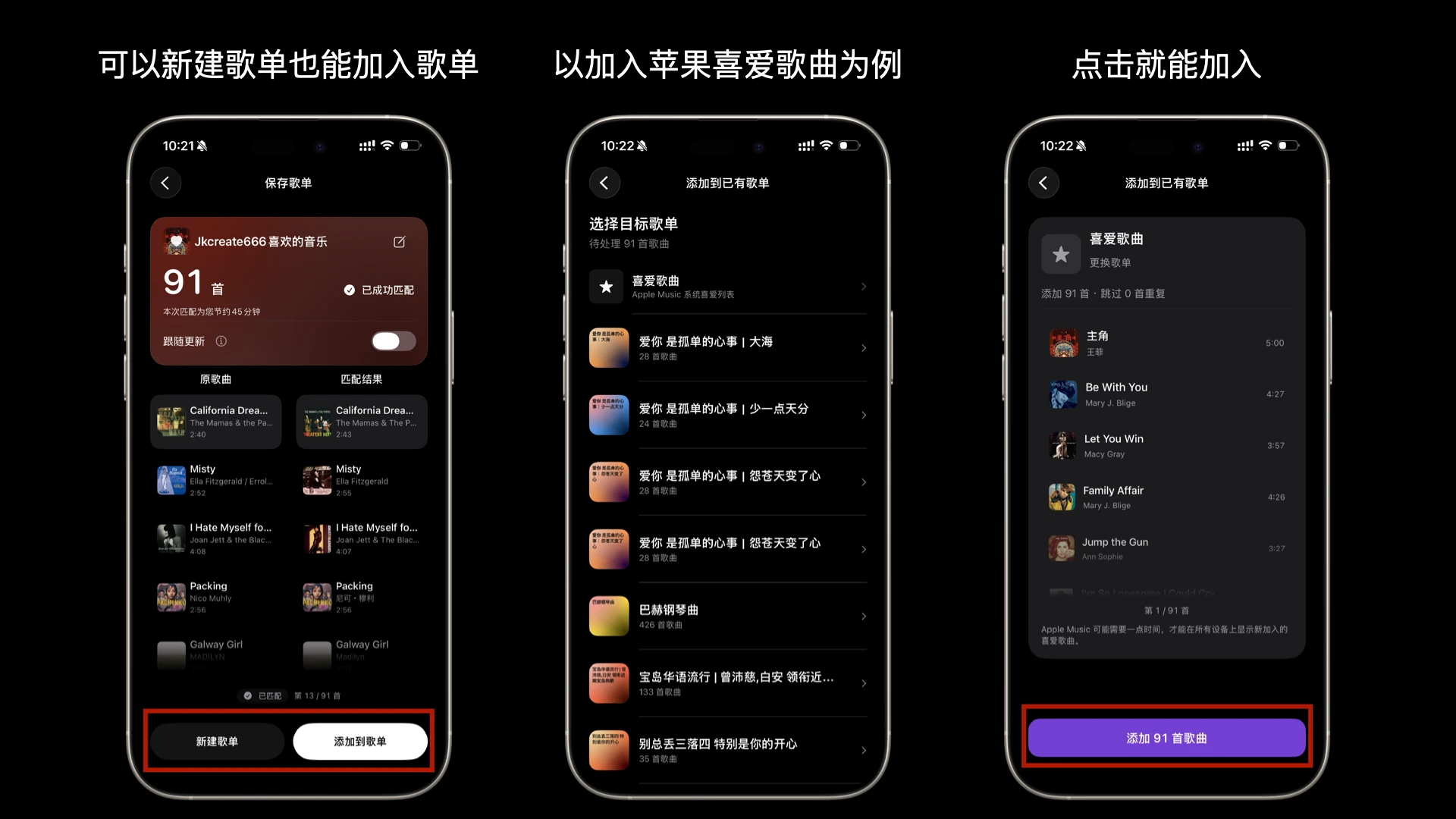
4. Review the matches and check the versions
The matching screen compares the source songs with the results. In these screenshots, both the matching screen and the completed results show 10:21 in the status bar. The final result is 91 matched songs. Bulk searching removes much of the repetitive work, but it is still worth checking your favorites, especially live recordings, covers and songs with identical titles.
5. Create a playlist or add to an existing one
After reviewing the results, choose to create a new playlist or add to an existing playlist. The screenshots show the existing-playlist option and the confirmation for adding 91 songs to Favorite Songs.
6. Open Apple Music and check the result
Once the import finishes, ClipTunes shows a success message and an option to open Apple Music. Below you can see the successful transfer of 91 songs and the resulting playlist in Apple Music.
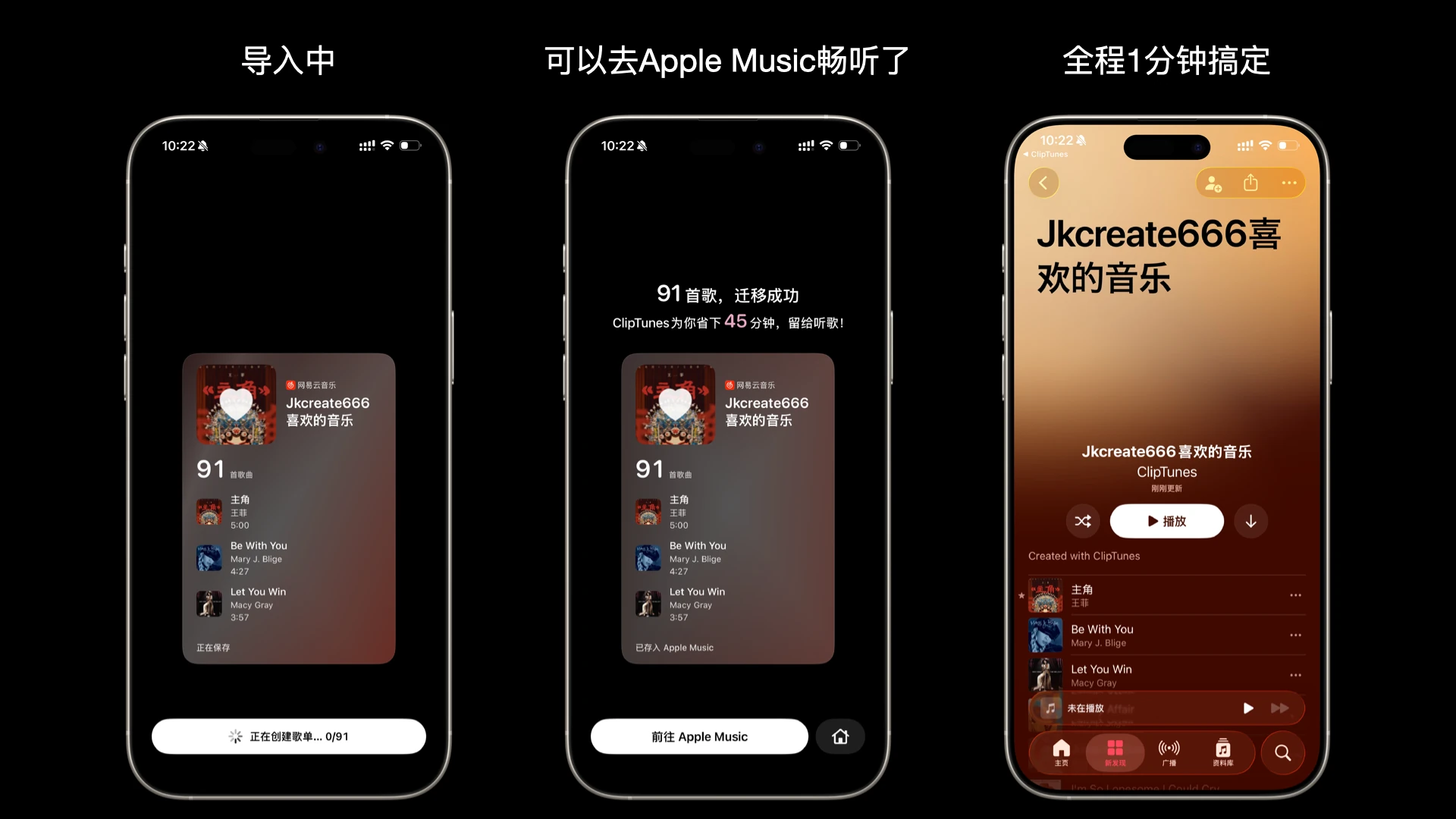
The status bars show the link being copied at around 10:20, matching results at around 10:21 and the completed import at around 10:22. The steps took place within a few minutes. The “one minute” annotation in the original image describes the experience at the time, rather than a precise stopwatch measurement. Different playlist sizes will take different amounts of time.
Speed and accuracy: look at the actual results
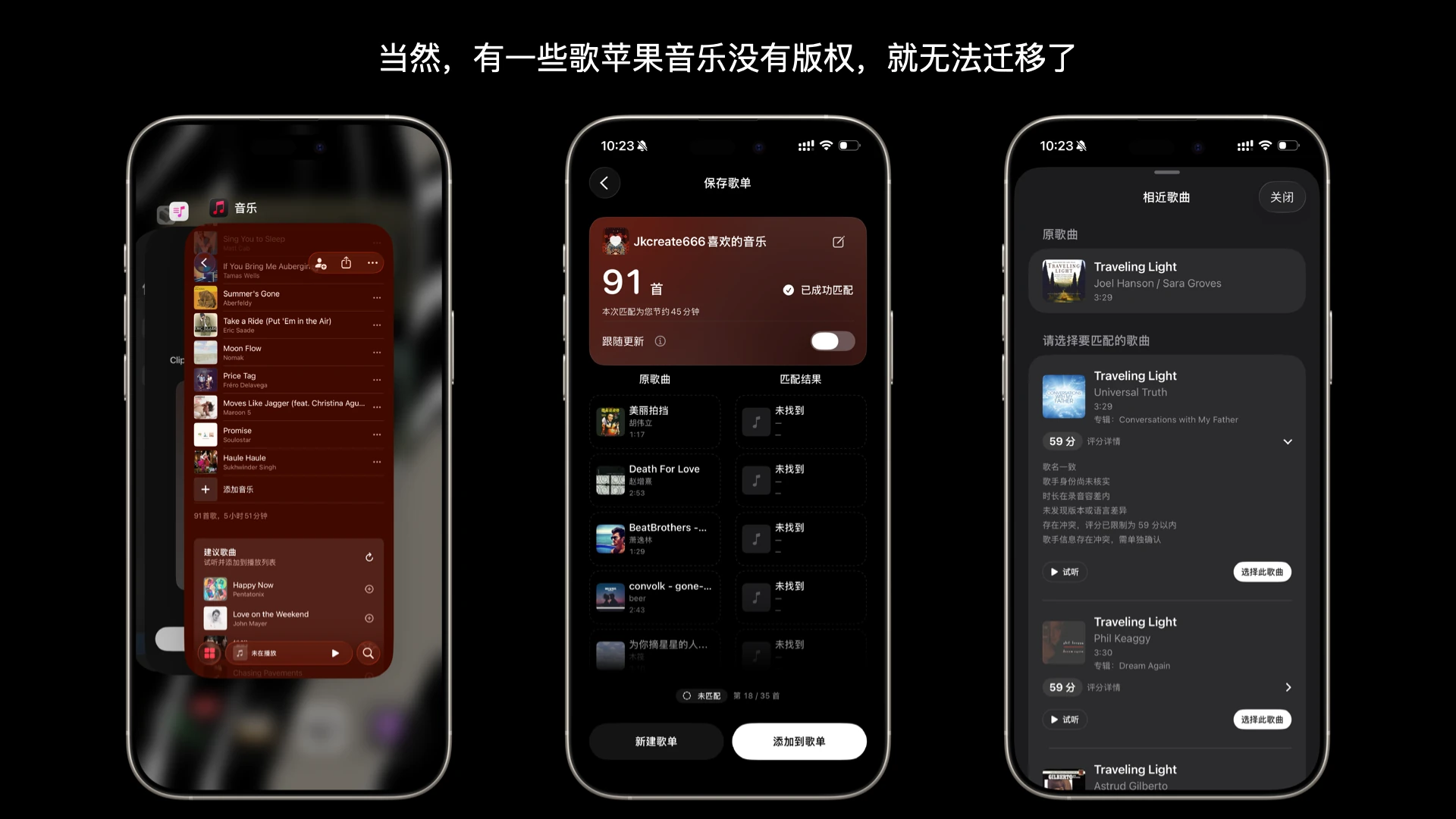
In this example, NetEase displayed 127 songs, ClipTunes read 126, and 91 were successfully matched and imported, leaving 35 unmatched. Compare the counts before and after transfer and review the unmatched list so you can follow up on missing tracks.
An unmatched song does not necessarily mean a licensing issue. Regional catalog differences, availability, title and artist metadata, and recording versions can all affect results. When several candidates appear, compare the artist, album and duration, and preview them before choosing. Leave uncertain songs on your review list.
Transfer multiple playlists and keep up with new additions
ClipTunes also supports batch import. Paste several playlist links into the input box to create a separate Apple Music playlist for each one. You can include links from different supported services, such as NetEase Music, QQ Music and Kugou Music, in the same batch.
Another useful feature is Playlist Updates. Enable Follow Updates during migration, then use ClipTunes to check for and add newly added songs from the source playlist. You do not need to import the entire playlist again: start a check and add the new songs in the app when needed.
Which approach would I choose?
If your playlist is small, you want to try a free allowance and you do not mind switching websites, the text-extraction-plus-TuneMyMusic route is worth trying. First confirm that the extraction tool works and that the allowance covers your needs.
If you mainly use an iPhone and have lots of songs or playlists, ClipTunes offers a simpler flow: copy the link, review the matches and confirm the import. The one-time unlock suits repeated transfers and playlist updates. Start by matching one of your regular playlists for free to see how many tracks are found and whether the versions are right.
To bring years of collected music into Apple Music, start with the playlist you would miss most.
Explore ClipTunes features · Download ClipTunes on the App Store
Features and pricing were checked against the ClipTunes App Store description and version history; the web service’s free allowance comes from the TuneMyMusic plans page. Checked October 20, 2026. The test results refer to the playlist and screenshots shown here.
Ready to move your playlists?
Use ClipTunes to convert AI text lists and migrate playlists from major music platforms.